
Crystal Reports for Acumatica — Help Center
Email Templates: Automating Report Distribution to Stakeholders
Email Templates: Automating Report Distribution to Stakeholders
Email remains the primary communication channel for business intelligence and financial reporting. While many tools can generate reports, AstraReports distinguishes itself through its sophisticated email template system—allowing you to design templated communications that include multiple reports, customize messaging, and send them automatically on a schedule. This article walks you through building, managing, and deploying email templates that transform how your organization distributes critical information.
Why Email Templates Matter
In many organizations, report distribution is a manual, fragmented process. The AR manager might email aging reports to collections, the controller sends close packages to the board, and various department heads receive budget variance reports. Without standardization, each email is crafted individually, introducing inconsistency and consuming valuable time.
Email templates solve this problem by providing a framework for consistent, repeatable distributions. Define your template once—with the right reports, recipients, formatting, and messaging—and reuse it indefinitely. When a scheduled send occurs, the template generates fresh data from your latest Acumatica information and delivers it automatically.
Accessing Pixis Email Templates
Email templates in AstraReports are accessed through the Pixis Email Templates section within the AstraReports module. This centralized hub displays all templates you’ve created, shows which are actively scheduled, and allows you to test templates before deploying them.
From this screen, you can create new templates, edit existing ones, delete obsolete templates, and view the distribution history for each template. The interface provides clear visibility into which reports are attached to each template and which recipients will receive it.
Building Your Email Template: Core Data
When creating a new email template, you begin with fundamental information:
Template Name: A descriptive identifier for your own reference. Examples might be “Monthly Board Package,” “Weekly AR Aging,” or “Daily Cash Position.” Choose names that clearly indicate the template’s purpose and frequency.
Subject Line: The email subject that recipients will see. This should be professional and descriptive, such as “Monthly Financial Close Package – March 2026” or “Weekly Collections Report.” Many organizations include the month or date in the subject to provide immediate context.
Email Body: The message body that introduces the attached reports. This is where you provide context, highlight key information, or direct recipients to specific reports. For example:
“Please find attached the March monthly close package. The consolidated financial statements reflect all period-end accruals and adjustments. Questions regarding segment performance should be directed to the segment controller. The P&L variance analysis is on page 3.”
The body supports standard formatting—bold, italics, line breaks—allowing you to create professional, readable messages.
Recipients: The email address(es) where the template will send. You can specify multiple recipients by entering a semicolon-separated list or by building a distribution list in your email system and entering that list address. This ensures consistency—the same stakeholders always receive the report.
The Attached Reports Tab: Adding Multiple Reports
The true power of AstraReports email templates emerges in the Attached Reports tab. Rather than being limited to a single report per email, you can attach multiple reports to a single template, each with customized parameters.
To add reports to your template, click the “+” button on the Attached Reports tab. A dialog allows you to select from your available AstraReports reports. You can add as many reports as needed to create a comprehensive package.
Each attached report appears as a row in the Attached Reports section, showing:
- Report Name: Which report is attached
- Format: The export format (PDF, Excel, Word, etc.)
- Parameters: Any specific parameters applied to this report
- Sort Order: The sequence in which reports appear in the email
Applying Report-Specific Parameters
One of the most sophisticated features is the ability to apply different parameters to each attached report within the same email template. Consider a monthly close package for a multi-division organization:
- Division A Income Statement: Apply the “Division = A” parameter, “Period = Current Month”
- Division B Income Statement: Apply the “Division = B” parameter, “Period = Current Month”
- Consolidated Balance Sheet: Apply no division filter, “Period = Current Month”
- Cash Flow Statement: Apply “Period = Current Month” only
The email template intelligently applies these parameters, generating each report with its specific configuration, then attaches all of them to the same message. Recipients receive a complete, tailored package without you having to manually configure each report.
For parameters that should be dynamic—such as “last day of previous month” or “current quarter start date”—AstraReports supports parameter functions that calculate values automatically. This ensures your scheduled emails always use the correct time periods without manual intervention.
Managing the Report List
As you build your attached reports list, you can adjust the order in which reports appear. Most organizations place executive summary or consolidated reports first, followed by detail reports. Use the sort order controls to arrange reports logically.
You can also edit individual attached reports—changing their parameters or format—without affecting other reports in the template. If you decide a report should be excluded from the template, remove it by clicking the delete icon on that row.
Sending: Immediate or Scheduled
Once your email template is fully configured, you have two options for sending:
Send Immediately is useful for testing or one-off distributions. Click “Send Now,” and AstraReports generates all attached reports with the configured parameters and sends the email immediately to all recipients. This allows you to verify that the template produces the correct output before scheduling it for recurring distribution.
Schedule for Recurring Distribution converts your template into an automated workflow. You configure the schedule—daily, weekly, monthly, or custom pattern—and from that point forward, the email and all its attached reports generate and send automatically on your specified cadence.
When you schedule a template, AstraReports displays the next scheduled send time and the execution history. You can pause a scheduled template temporarily (for example, during system maintenance) or permanently delete it when it’s no longer needed.
Managing Your Template Library
As you build more templates, organization becomes important. The Pixis Email Templates listing shows all templates with useful metadata:
- Template Name: Your descriptive identifier
- Status: Active (scheduled) or Inactive (not currently scheduled)
- Next Send Time: When the next distribution will occur (for scheduled templates)
- Last Sent: The timestamp of the most recent distribution
- Recipients Count: How many people receive the template
You can search and filter this list by template name or status, making it easy to find templates even if you have dozens. Most organizations maintain 5-15 active templates covering different stakeholder groups and reporting cadences.
Real-World Use Case: Collections Team Reporting
Consider a mid-market business services company with a 15-person collections team. The collections manager needs to provide the CFO with a weekly aging analysis, and the team needs a daily dashboard showing open receivables by customer.
Weekly Template: “AR Aging to CFO” – Recipients: CFO, Accounting Manager – Subject: “Weekly Receivables Aging – Week of [Date]” – Body: “Please find attached the current AR aging as of Friday EOD. Total receivables: [To be calculated]. Days sales outstanding: [To be calculated].” – Attached Reports: 1. AR Aging by Customer (PDF) 2. Collections Activity Summary (Excel) 3. Top 20 Overdue Accounts (PDF) – Schedule: Every Friday at 4:00 PM – Parameters: All reports set to “Current Week” cutoff date
Daily Template: “Collections Daily Dashboard” – Recipients: Collections Manager, Collections Team Distribution List – Subject: “Daily Open Receivables Dashboard” – Body: “Your daily collections dashboard. Focus on accounts marked CRITICAL.” – Attached Reports: 1. Open Receivables Dashboard (PDF) 2. Collections Calls Due Today (Excel) – Schedule: Every weekday at 8:00 AM – Parameters: Both reports set to “Today’s Date”
Without these templates, the collections manager would manually generate and send these reports daily and weekly. With templates, they’re completely automated. The team always has current data, and the CFO always receives consistent, timely information.
Monthly P&L and Board Package Example
A holding company with five subsidiaries uses a comprehensive email template for monthly board reporting:
Template: “Monthly Board Package” – Recipients: All board members (via distribution list), CEO, CFO – Subject: “Monthly Financial Results – [Month] [Year]” – Body: A detailed message explaining key metrics, highlighting variances, and directing board members to specific reports – Attached Reports: 1. Consolidated P&L (PDF) 2. Consolidated Balance Sheet (PDF) 3. Cash Flow Statement (PDF) 4. Subsidiary Performance Summary (Excel) 5. Board Metrics Dashboard (PDF) 6. Internal Audit Status Report (PDF) – Schedule: The 5th of each month at 6:00 AM – Parameters: Each P&L and balance sheet filtered by appropriate subsidiary, dates set to “Month End”
The CFO configures this template once in January, and it automatically sends to all board members on the 5th of every subsequent month. There’s never a risk of forgetting, no variation in format, and stakeholders know they can expect the package at a consistent time each month.
Best Practices for Email Templates
Keep subject lines clear and dated: Recipients should understand at a glance which period the report covers. “March 2026 Close Package” is better than “Monthly Reports.”
Use email bodies for context: The email body is your opportunity to highlight important findings, explain changes, or direct recipients to specific pages. Don’t leave recipients guessing why they received the report.
Order reports logically: Place executive summaries and consolidated reports first, followed by detail. This allows busy executives to skim the top report and drill into details as needed.
Test before scheduling: Always send your template immediately to yourself once before scheduling it for recurring distribution. Verify the output, check that all reports are present, and confirm recipients are correct.
Review schedules quarterly: Every quarter, audit your active templates. Are all of them still used? Have recipient lists changed? This housekeeping prevents stale templates from cluttering your system.
Conclusion
Email templates in AstraReports transform report distribution from a manual, error-prone process into consistent, automated workflows. By defining templates once and scheduling them for recurring execution, finance teams reclaim dozens of hours annually while simultaneously improving stakeholder satisfaction through consistent, timely delivery.
Start by identifying your most frequent distributions—typically your monthly board package and weekly operational reports. Build templates for those first, test them thoroughly, and then expand to additional distribution patterns as you see the efficiency gains.
Step-by-Step: Sending a Report by Email With Scheduling
Email templates in AstraReports are the bridge between a finished Crystal Report and the inbox of the person who needs it. The flow has four screens.
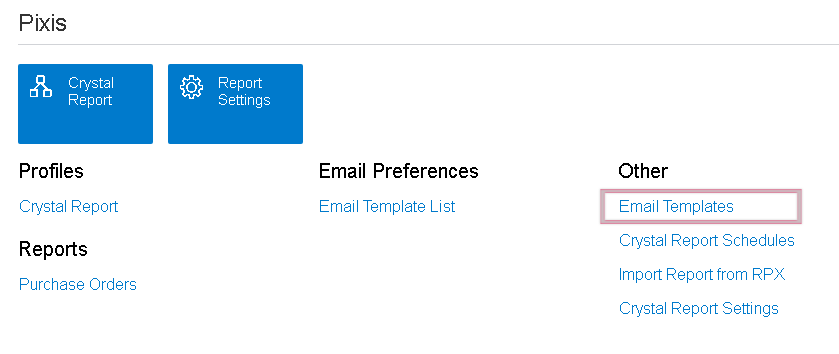
1. Open the Email Templates Screen
From the Pixis Extension, click Email Templates.
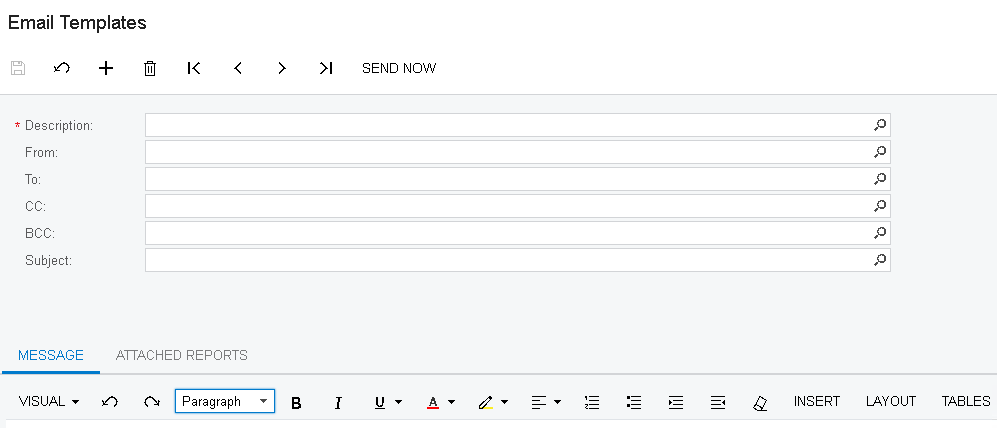
2. Fill In the Template and Save
Enter the subject, body, recipient list, and any other relevant fields, then click Save. The template is now a reusable artifact—you can wire it up to a schedule, attach reports, or send it ad-hoc later.
3. Attach a Crystal Report
Switch to the Attached Reports tab and pick one (or several) Crystal Reports to attach. Every recipient on the template will receive the latest run of each attached report.

4. Send Immediately—or Schedule
You can fire the template off right now using the Send Now button:
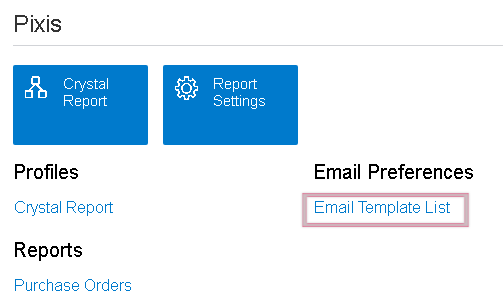
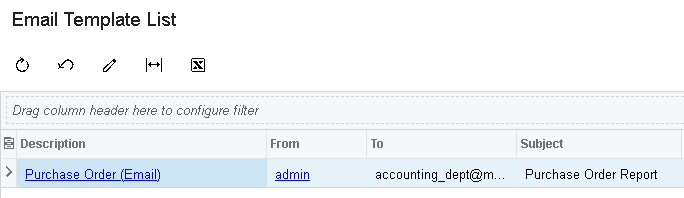
…or come back later, open the Email Template List, and edit, schedule, or duplicate any template.
The combination of templates + schedules is what lets a single finance team automate dozens of recurring reports. Build the template once, attach the Crystal Report, set a schedule, and the monthly board pack ships itself.