
Crystal Reports for Acumatica — Help Center
Exporting Reports: Excel, PDF, Word, CSV & XML Options
Exporting Reports: Excel, PDF, Word, CSV & XML Options
One of AstraReports’ core strengths is its flexibility in report distribution. While Crystal Reports excels at creating pixel-perfect, professionally formatted reports, the real value emerges when those reports can be delivered in whatever format your stakeholders need. Whether you require a static PDF for distribution, an Excel workbook for further analysis, a Word document for executive presentations, or raw data in CSV format for system integration, AstraReports supports all of these export options and more.
Understanding which export format to use—and when—is essential for maximizing your reporting efficiency. This article walks through each available format, explains its strengths and best use cases, and shows you how to export your reports in seconds.
The Five Primary Export Formats
AstraReports supports five main export formats: PDF, Excel (XLSX), Word (DOCX), CSV, and XML. Each serves a distinct purpose in your reporting workflow.
PDF: The Professional Standard
PDF (Portable Document Format) is the industry-standard format for final, presentable reports. PDF exports preserve every aspect of your report’s design—fonts, colors, images, layout, page breaks, and formatting—exactly as it appears in the Crystal Reports preview. This fidelity makes PDF ideal for distribution to stakeholders who should not modify the report.
When to use PDF: – Board presentations and board packages – External distribution (clients, auditors, banks) – Month-end close packages – Formal financial statements – Any report that must be read-only and professionally formatted
Advantages: Pixel-perfect formatting, universally readable, maintains security (can be password-protected), excellent for printing, compact file size.
Limitations: Not editable for end users, not suitable for further data analysis, not easily imported to other systems.
A typical use case: Your monthly consolidated financial statements are exported to PDF and distributed to the board, senior leadership, and external auditors. Everyone receives identical, professionally formatted documents that cannot be accidentally modified.
Excel: The Analyst’s Choice
Excel (XLSX) export transforms your report into a spreadsheet format that analysts, controllers, and accountants can manipulate, analyze, and integrate with other data. When you export a report to Excel, AstraReports converts the report structure into spreadsheet cells, preserving data integrity while enabling further analysis.
When to use Excel: – Variance analysis (compare actual vs. budget) – Data consolidation across multiple reports – Ad-hoc analysis and what-if scenarios – Reports that need to feed into downstream analysis – Sharing with analysts who work in spreadsheets – Creating custom visualizations or pivot tables
Advantages: Full analytical capability, integrates with other Excel workbooks, enables formulas and calculations, creates pivot tables, familiar to finance teams, suitable for sensitivity analysis.
Limitations: Some formatting may be lost (especially complex Crystal Reports design elements), larger file sizes than PDF, less suitable for formal distribution.
A practical example: You export your departmental P&L to Excel, then your corporate accountant uses it to build a consolidated company P&L that combines figures from five different business units. Excel’s formula capabilities make this workflow seamless.
Word: The Document Alternative
Word (DOCX) export converts your report into a Microsoft Word document, providing a middle ground between the static nature of PDF and the analytical power of Excel. Word exports are useful when you need a formatted, distributable document that might require light editing or annotation.
When to use Word: – Reports that require minor edits before final distribution – Documents that will be included in larger compiled documents – Reports with narrative commentary alongside data – Executive summaries with supporting detail – Templates that will be customized for different audiences
Advantages: Editable for end users, maintains reasonable formatting, suitable for inclusion in larger documents, supports adding comments and annotations.
Limitations: Formatting preservation is less perfect than PDF, not ideal for data analysis, less suitable for read-only distribution.
A typical scenario: You export a quarterly business review report to Word, then your VP of Finance adds commentary, highlights key metrics, and includes it in a board presentation document. The flexibility to edit is valuable here.
CSV: The Data Integration Format
CSV (Comma-Separated Values) export strips your report down to its raw data in text format. Each line represents a row, with commas separating columns. This format is ideal for importing data into other systems, databases, or data warehouses.
When to use CSV: – Importing data into other business systems – Feeding data to data warehouses or BI platforms – Creating custom exports for system integrations – Archiving historical data in portable format – Sharing data with non-Windows systems or legacy applications
Advantages: Universally readable, minimal file size, platform-independent, suitable for system integration, preserves raw data without formatting overhead.
Limitations: No formatting preserved, no visual structure, requires technical understanding to interpret, not suitable for end-user distribution.
An integration example: Your accounts receivable aging report is exported to CSV, then imported automatically into your collections workflow system for daily collections management. The raw data format makes this integration possible.
XML: The Structured Data Standard
XML (eXtensible Markup Language) export provides structured data with descriptive tags, making it ideal for sophisticated system integrations, data warehouses, or organizations using advanced data processing workflows.
When to use XML: – Enterprise data warehouse integration – Custom application data feeds – System-to-system integration where structured data is required – Archival with metadata preservation – Technical integrations with modern APIs
Advantages: Structured, self-describing data, suitable for sophisticated integrations, preserves data hierarchy, machine-readable with clear metadata.
Limitations: Requires technical expertise to parse, larger file sizes than CSV, not suitable for end-user analysis, specialized use cases only.
The Export Process: Preview to Export Menu
Exporting a report in AstraReports is straightforward. After running a report and viewing the preview, locate the Export button or menu. This typically appears in the report toolbar and presents you with a dropdown menu of available formats.
To export your report:
- Run the report with your desired parameters
- Review the preview to verify the data and formatting
- Click the Export button and select your desired format
- Configure export options (if applicable—PDF might offer compression options, Excel might offer sheet naming)
- Click Export, and the file downloads to your computer
The entire process typically takes just a few seconds. Your file downloads to your default download location, ready for use, distribution, or further processing.
HTML Preview: Interactive Web Viewing
In addition to downloadable export formats, AstraReports provides HTML preview functionality. This allows stakeholders to view reports in a web browser without downloading or installing software. HTML preview is particularly useful for:
- Quick review before formal export
- Sharing links with stakeholders who need to view but not download
- Reducing file storage and email attachment sizes
- Enabling print-to-PDF directly from the browser
The HTML preview maintains the report’s structure and formatting, making it suitable for most viewing scenarios. It’s interactive, allowing users to navigate multi-page reports and zoom as needed.
Printing Directly from AstraReports
Beyond digital export, AstraReports supports printing directly to physical paper or to a print-to-PDF driver. This is useful for:
- Creating hardcopy board packages
- Printing reports for archive or audit binders
- Physical distribution to stakeholders without email/digital access
- Integration with document management systems that scan printed documents
When you select Print from AstraReports, you can choose your printer, configure page settings, and print the report in its full Crystal Reports formatting glory.
Choosing the Right Format for Your Use Case
The decision of which format to use depends on your specific need:
For formal distribution to executives or external parties: Use PDF. It’s professional, preserves formatting, and cannot be accidentally modified.
For analysis, variance investigation, or further calculation: Use Excel. Give your analysts the data in the format where they’re most productive.
For system integration or data warehouse feeds: Use CSV or XML, depending on your downstream system’s requirements.
For documents that will be compiled or require editing: Use Word. It provides enough flexibility while maintaining reasonable formatting.
For quick review before downloading: Use HTML preview in your browser. It’s fast and doesn’t consume disk space.
Batch Export and Scheduling
For recurring needs, remember that AstraReports scheduling (covered in Article 16) can automatically export reports in your chosen format and deliver them via email or FTP. Rather than manually exporting each report, you can schedule exports to run automatically—generating an Excel file each week for your analyst, a PDF board package each month for your board, and a CSV import file daily for your collections system.
Performance and File Size Considerations
Export format choices can have practical performance implications:
- PDF files are typically the smallest, thanks to compression. A 50-page financial report might be 500 KB in PDF.
- Excel files are slightly larger, perhaps 700 KB for the same content, due to the additional spreadsheet structure.
- Word files are similar in size to Excel.
- CSV files are often smaller than PDF, containing only data without formatting overhead.
- XML files can be significantly larger, as they include structural tags.
When distributing via email or over slower connections, these size differences matter. For large, complex reports distributed frequently, this is worth considering in your format choice.
Common Export Scenarios
Month-End Close Package: Export your consolidated P&L, balance sheet, and cash flow to PDF for board distribution. Export the same reports to Excel for your accounting team’s analysis and consolidation work.
Weekly Variance Report: Export to Excel so your business unit controllers can analyze variances, perform what-if analysis, and identify the root causes of budget variances.
Daily Sales Report: Export to CSV and import automatically into your sales commission system, eliminating manual data entry.
Quarterly Business Review: Export to Word so your CFO can add commentary, then include in a larger board presentation document.
Annual Audit Support: Export financial statements to PDF for your external auditors. Also export supporting schedules to Excel so auditors can work with the data in their preferred format.
Conclusion
AstraReports’ multi-format export capability transforms Crystal Reports from a reporting tool into a universal data distribution platform. By understanding when to use each format, you can optimize your reporting workflow—ensuring that stakeholders receive reports in the format that’s most useful for their specific need.
Start with PDF for formal distributions and Excel for analytical workloads. As you mature your reporting practice, explore CSV and XML exports for system integrations and data warehouse feeds. The flexibility is there when you need it.
Step-by-Step: Exporting a Report in Five Formats
AstraReports exposes the full Crystal Reports export menu directly inside Acumatica. From any preview, you are two clicks away from PDF, Excel, Word, CSV, or XML.
1. Open the Report You Want to Export
Run the report you want to save and wait for the preview to render.
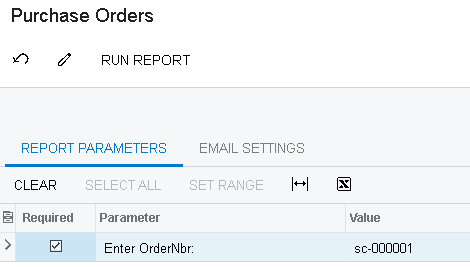
2. Pick a Format From the Export Dropdown
Click the Export button in the toolbar and choose your destination format.
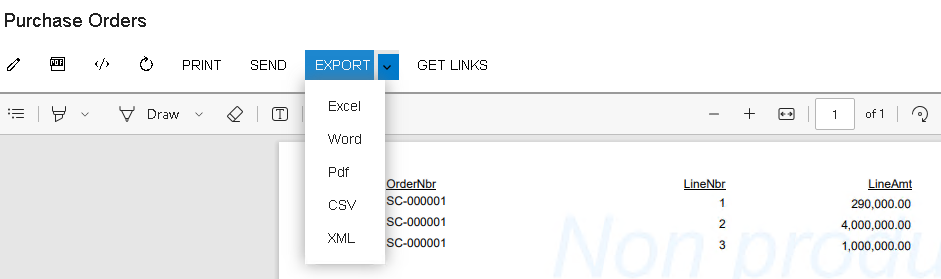
A practical mapping of “which format when”:
- PDF — Formal distributions, board packs, anything that should not be edited.
- Excel — Analysts who want to filter, pivot, or add their own formulas on top of your numbers.
- Word — Reports that get pasted into a larger narrative document (MD&A, audit memos).
- CSV — Feeding the data into a downstream system (BI tool, data warehouse, another ERP).
- XML — System-to-system integrations where structure matters as much as values.
The export honors all formatting you applied in the Crystal Reports designer, so headers, footers, calculations, and groupings carry through to every format.