
Crystal Reports for Acumatica — Help Center
How to Install and Configure AstraReports in Acumatica
How to Install and Configure AstraReports in Acumatica
Installing AstraReports is straightforward, but like any enterprise extension, it requires careful attention to prerequisites and configuration. This guide walks you through each step, from verifying your environment is ready to configuring the settings that ensure your reporting infrastructure runs smoothly.
Prerequisites
Before you begin, ensure your environment meets the basic requirements. You need a working Acumatica instance running a version supported by the Pixis Extension—your Acumatica administrator can confirm this. You’ll also need a valid SAP Crystal Reports license. This is critical: AstraReports extends the functionality of Crystal Reports, but it doesn’t replace the licensing requirement. If your organization doesn’t yet have Crystal Reports, discuss licensing options with your Pixis representative during the sales process.
You’ll also need administrative access to your Acumatica instance to install the extension and configure settings. If you’re an accounting professional rather than a system administrator, coordinate with your IT team to handle the installation, then work through the configuration together.
Installation Steps
The installation process begins with obtaining the Pixis Extension package from your Pixis representative or your organization’s software repository. The package is distributed as a deployment file compatible with Acumatica’s extension framework.
Log into Acumatica as a system administrator and navigate to System Setup > Extensions. Click the “Upload Extension” button and select the Pixis Extension package. Acumatica will validate the package and display the extension details. Review the information to confirm you’re installing the correct version, then click “Install.” Acumatica will extract the extension files, register the necessary database objects, and enable the Crystal Report functionality throughout the system.
The installation typically completes within a few minutes. You may see a prompt to restart your browser session. Do so to ensure the new extension loads properly. After restart, navigate to Administration > System Setup > General Ledger Settings or any screen where you expect Crystal Reports functionality to appear. You should now see the Crystal Reports tab alongside the standard Acumatica tabs.
Configuring Report Settings
Once the extension is installed, your next step is to configure the Report Settings. These settings define how AstraReports connects to your Crystal Reports server, manages security, and handles request timeouts. Navigate to System Setup > Customization > Report Settings in Acumatica.
The Report Settings screen contains several configuration fields that you’ll need to populate or verify:
Report Server is the network address or hostname of your SAP Crystal Reports server. If Crystal Reports is installed on a dedicated server, enter its fully qualified domain name or IP address. If you’re using a cloud-hosted Crystal Reports instance, enter the appropriate URL provided by your Crystal Reports administrator. This field must be reachable from your Acumatica application server, so verify network connectivity and firewall rules if you encounter connection errors during testing.
Report Login and Report Password contain the credentials AstraReports uses to authenticate to the Crystal Reports server. This account should have sufficient permissions to access report repositories and run reports on behalf of your Acumatica users. In many organizations, this is a service account created specifically for report distribution and automation. Never use a personal user account here, as password changes will break your reporting automation.
Request Timeout specifies how many seconds AstraReports will wait for a report to complete before timing out. A common starting point is 60 seconds, increased toward 300 seconds (5 minutes), which suits most scenarios. If you have particularly complex reports that require longer to execute, increase this value. However, be mindful that very long timeouts can degrade user experience if reports are run interactively. For scheduled reports that run in the background, longer timeouts are appropriate.
Admin Access Rights controls which users or roles can perform administrative tasks within AstraReports. There are typically three granular permissions to configure:
The “Change Settings” permission allows users to modify Report Server, Login, Password, and Request Timeout values. Restrict this to your IT team or the finance administrator responsible for system configuration. Finance managers don’t typically need this permission.
The “Change Templates” permission allows users to create, edit, and delete report templates. This is often given to power users in the accounting department who build custom reports regularly. If your organization prefers a centralized report development approach, restrict this to a dedicated report designer.
The “Change Editing Access” permission allows users to modify existing reports and share them with other users. This is appropriate for report developers and power users, but not for the entire finance team.
Set these permissions based on your organization’s governance model. A typical configuration grants “Change Settings” to IT, “Change Templates” and “Change Editing Access” to designated report developers, and leaves all three unchecked for regular finance users who only consume reports.
Version Checking and Validation
After configuration, verify that the extension is properly installed by checking the version information. In Acumatica, navigate to System Setup > Extensions and locate the Pixis Crystal Report extension in the list. Note the version number displayed. This confirms that the correct version is installed in your environment.
Next, test the connection to your Crystal Reports server. In Report Settings, click “Test Connection” (if available) or navigate to any Crystal Report screen and attempt to load a simple report. If the connection fails, verify that your Report Server address is correct, that the login credentials have appropriate permissions, and that your network firewall allows communication between the Acumatica server and the Crystal Reports server.
Common Configuration Considerations
If your organization uses a dedicated Crystal Reports server separate from your Acumatica server, ensure that both systems are communicating over a secure, reliable network connection. If they’re geographically distributed or connected over the internet, discuss SSL/TLS encryption and VPN options with your IT team.
If you’re implementing AstraReports in a multi-company or multi-tenant Acumatica environment, coordinate with your Pixis representative about any tenant-specific configuration requirements. Some scenarios may require separate Report Server configurations per tenant.
For organizations with strict change management processes, document the Report Settings configuration—the Report Server address, timeout values, and Admin Access Rights assignments—in your system administration playbook. This ensures that future administrators understand the setup and can troubleshoot issues more effectively.
Next Steps
With AstraReports installed and configured, your next step is learning to navigate the interface and understand where reports, settings, and profiles are located within Acumatica. The interface guide in this knowledge base walks you through the key screens and functionality areas you’ll interact with as you build and manage reports.
If you encounter any configuration issues or need to adjust settings after initial setup, contact your Pixis support team or consult the detailed configuration documentation provided with your AstraReports license. Proper configuration at this stage ensures smooth operation of your reporting system for months and years to come.
Step-by-Step: Configuring Crystal Report Settings
Once the Pixis Extension is installed, all server-side configuration happens on the Crystal Report Settings screen. This is where you tell AstraReports where the Report Server lives, who can run reports against it, and how long the server should wait before timing out a long-running job.
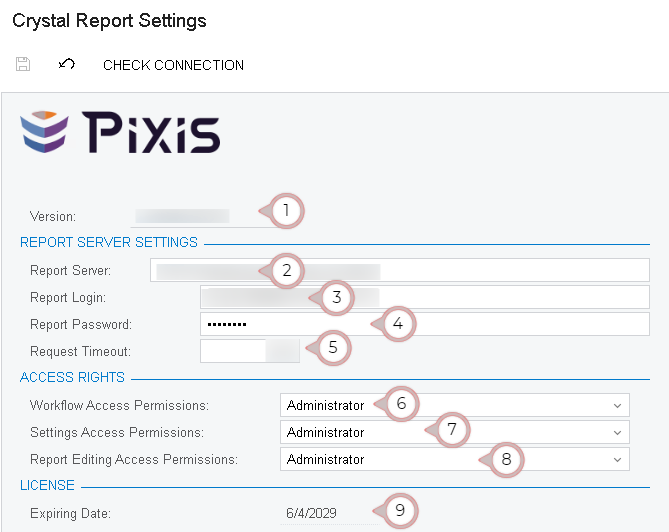
Here is what each field on the Crystal Report Settings screen controls and why it matters:
- Version — The installed version of the Pixis Crystal extension. Keep this visible when contacting support so the team can confirm you are on a supported release.
- Report Server — The address of the server that actually runs the Crystal Reports. In a standard deployment this is the same server hosting Acumatica, but in larger environments report generation is often offloaded to a dedicated machine.
- Report Login — The service account used by the Report Server to authenticate. Use a dedicated account rather than a personal user so the integration keeps working when staff rotate.
- Report Password — Password for the Report Server account. Store it in your secrets manager and rotate it on your normal cadence.
- Request Timeout — Seconds the server will wait before cancelling a running report. Increase this if you regularly generate large financial statements or year-end consolidations.
- Workflow — User (or role) allowed to change settings inside the Acumatica Pixis Workspace.
- Settings — User (or role) allowed to modify the Pixis Template itself.
- Report Editing — User (or role) allowed to edit underlying reports.
- Expiring Date — License expiry date. Pixis displays it here so administrators always know when to renew.
Configuration Tips From the Field
For most mid-market deployments the default timeout of 60 seconds is enough, but if you run multi-tenant consolidations or month-end packages with hundreds of pages, push the timeout to 300 seconds or higher. Separate the three “user” fields (Workflow, Settings, Report Editing) by role rather than by named individual—report developers should have Settings and Report Editing access, while controllers typically only need Workflow access for day-to-day execution.
Document the Report Server, login, and timeout values in your administration playbook alongside the screenshot above. When a new admin onboards, they will know exactly which screen to open and which field controls which behaviour.
Configuring the Power BI Engine
The steps above set up the Crystal Reports engine. If you also want to use Microsoft Power BI, there is a separate one-time connection to configure. In short, you register an application in Microsoft Entra, grant it Power BI permissions, and enter the resulting Tenant ID, Client ID, and Client Secret on the Power BI tab of Report Settings, then create a Power BI workspace for AstraReports to publish into. Because this involves your Microsoft tenant and a Microsoft Fabric or Power BI license, it is documented separately — see “Setting Up Power BI Integration with Acumatica” for the full walkthrough.